Incident Information Tab Fields
The Incident Information tab contains information about the problem.
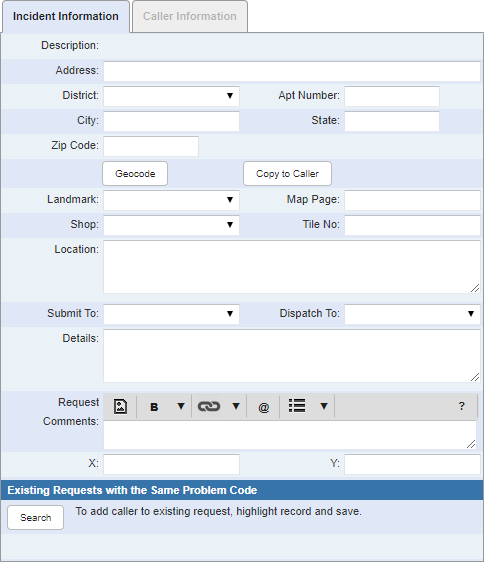
- Description: This field is automatically populated with the description of the problem type chosen in the Problem Tree and Problem Keywords tabs.
- Address: Enter the address.
- District: Select a district, if desired. Districts can represent any geographical area and are populated in Designer under Preferences > Map > District Values. If this field is blank, that means the administrator has not entered any districts.
- Apt Number: Enter an apartment number, if applicable.
- City: Enter the city.
- State: Enter the state.
- Zip Code: Enter the zip code.
- Geocode:
- Copy to Caller:
- Landmark: Select a landmark, if desired. This field is populated in Designer under Preferences > Custom Codes > LANDMARK. If it is blank, that means the administrator has not entered any landmarks.
- Map Page: Enter the map page number, if desired. This field is used to indicate the geographic area of the incident.
- Shop: Select a shop. This field is populated in Designer under Preferences > Map > Shop Values. If it is blank, that means the administrator has not entered any shops.
- Tile No: Enter the map tile number, if desired. This field is used to indicate the geographic area of the incident.
- Location: Enter any additional details about the location of the incident that will help to identify it (for example, Northwest corner of the intersection).
- Submit To: Select an employee to submit the service request to.
- Dispatch To: Select an employee to dispatch the service request to.
- Details: Enter any other details about the service request.
- Request Comments: Enter any comments.
- X/Y: These fields are automatically populated with the X and Y coordinates of the incident when Geocode has been
- Search:

Documentation Feedback Form
Please give us feedback about this Cityworks guide.
If you have a feature enhancement request, please see the Ideas page on MyCityworks.
Last updated 3/22/2019.
Copyright© 2010–2019 by Azteca Systems, LLC. All rights reserved.