Add a Task
Tasks are used to track the progress of work that must be done before the work order can be considered complete. If the administrator has configured tasks on the work order template, they will automatically be added to the work order when it is created. Users can also add tasks to the work order. See Tasks in the Designer for 15.4 Guide for more information.
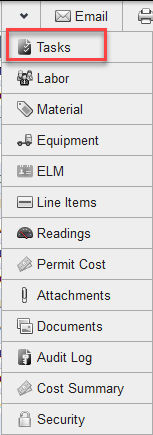
- Open a work order.
-
The tasks are displayed in a list in the Task/Entity panel. The Search By drop-down list can be used to filter the list of tasks.
- Select Hierarchy to view the tasks organized in a hierarchy that is configured by the administrator. Once you select Hierarchy, the page will reload and the domains will be displayed in a drop-down list. Select a domain to view the hierarchy configured for that domain.
- Select Predefined to view the tasks that the administrator has configured to appear on all work orders of this type. Note that these tasks were already added to the work order when it was created, so adding another one means it will appear twice on the work order. Select the desired task by
- Select Name to search the list of tasks by keyword. Enter the keyword in the Keyword field and
- Select the task from the Task/Entity panel using one of the options above.
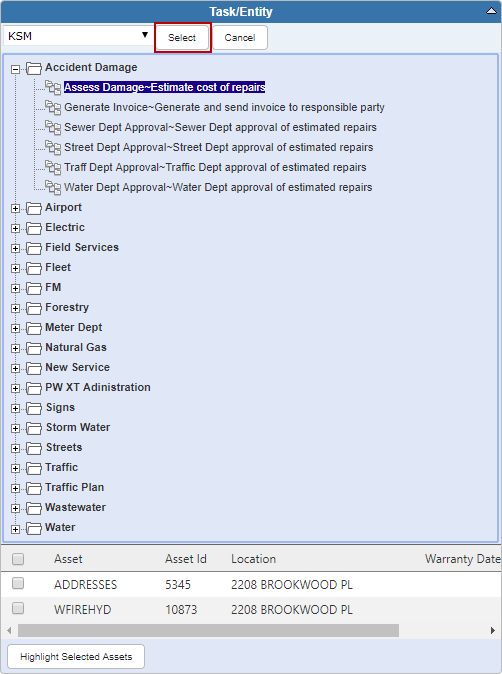
- If you wish to associate a task to an asset, select the asset at the bottom of the Task/Entity panel.
- If you select an asset, you can
 NOTE: See Cost Proportioning Enhanced in Cityworks 15.4 on MyCityworks for more information.
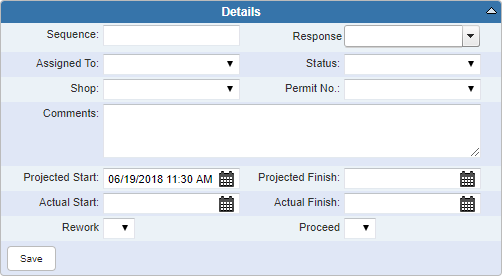
- Enter any information related to the task in the Details panel. Some fields might be automatically populated based on how the administrator has configured the task.

Documentation Feedback Form
Please give us feedback about this Cityworks guide.
If you have a feature enhancement request, please see the Ideas page on MyCityworks.
Last updated 3/22/2019.
Copyright© 2010–2019 by Azteca Systems, LLC. All rights reserved.