Task Details Panel Fields
In the Details panel, enter any information related to the task. This adds the task to the Tasks panel. Fields on the Details panel may vary depending on the task chosen.
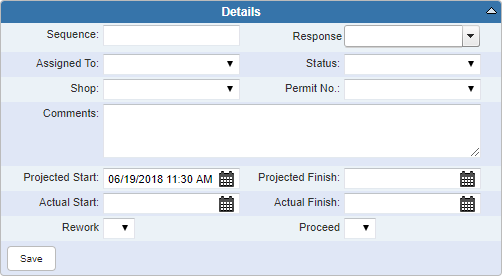
- Sequence: Enter a number for the order that this task should be done.
- Response: Select a response or enter a free-form response.
- Assigned To: Select the employee who the task is assigned to.
- Status: Select the status of the task.
- Shop: Select the shop, if applicable.
- Permit No.: Select the permit number, if applicable.
- Comments: Enter any comments related to the task.
- Projected Start: Enter the projected start date or select it using the calendar.
- Projected Finish: Enter the projected finish date or select it using the calendar.
- Actual Start: Enter the actual start date or select it using the calendar.
- Actual Finish: Enter the actual finish date or select it using the calendar.
- Rework: Select Y or N to indicate if the work was not up to the standards set or must be redone for any reason.
- Proceed: Select Y or N to indicate if the next task in the sequence can begin, even if the current task is not yet finished.
- Save:

Documentation Feedback Form
Please give us feedback about this Cityworks guide.
If you have a feature enhancement request, please see the Ideas page on MyCityworks.
Last updated 3/22/2019.
Copyright© 2010–2019 by Azteca Systems, LLC. All rights reserved.