Work Order Entity Search Fields
The work order entity search allows the user to search for an entity to see if it is associated to a work order. See Perform a Like Search, Perform a Quick Search, Perform a Wildcard Search, and Search Within a Numeric Range for more information on searching.
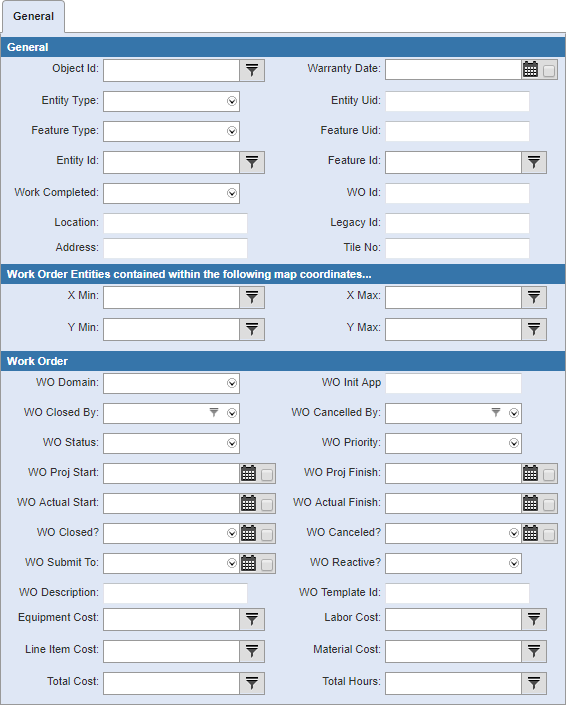
- Object Id: Enter the ID of the object.
- Warranty Date: Enter the warranty date or select it using the calendar.
- Entity Type: Select the entity type.
- Entity Uid: Enter the entity uid.
- Feature Type: Select the feature type.
- Feature Uid: Enter the feature uid.
- Entity Id: Enter the entity ID.
- Feature Id: Enter the feature ID.
- Work Completed: Select Y if the work has been completed, or N if the work has not been completed.
- Work Id: Enter the work ID.
- Location: Enter the location of the entity.
- Legacy Id: Enter the legacy ID.
- Address: Enter the address of the entity.
- Tile No: Enter the tile number.
- X Min: Enter the X min.
- X Max: Enter the X max.
- Y Min: Enter the Y min.
- Y Max: Enter the Y max.
- WO Domain: Select the domain the work order was created in.
- WO Init App: Enter the app that was used to create the work order.
- WO Closed By: Select the name of the user who closed the work order.
- WO Cancelled By: Select the name of the user who canceled the work order.
- WO Status: Select the status of the work order.
- WO Priority: Select the priority of the work order.
- WO Proj Start: Enter the projected start date of the work order or select it using the calendar.
- WO Proj Finish: Enter the projected finish date of the work order or select it using the calendar.
- WO Actual Start: Enter the date the work order began or select it using the calendar.
- WO Actual Finish: Enter the date the work order was finished or select it using the calendar.
- WO Closed?: Select Y if the work order is closed or N if it is not, and select the date closed if desired.
- WO Canceled?: Select Y if the work order is canceled, or N if it is not, and select the date canceled if desired.
- WO Submit To: Select who the work order was submitted to. Use the calendar to select the date submitted if desired.
- WO Reactive?: Select Y if the work order was created because of a service request, or N if it was not.
- WO Description: Enter any of the work order description.
- WO Template Id: Enter the work order template ID.
- Equipment Cost: Enter the cost of equipment used in the work order.
- Labor Cost: Enter the labor cost.
- Line Item Cost: Enter the line item cost.
- Material Cost: Enter the material cost.
- Total Cost: Enter the total cost associated with the work order.
- Total Hours: Enter the total hours of labor for the work order.
See Work Order Search Results Toolbar Fields for more information on the results toolbar

Documentation Feedback Form
Please give us feedback about this Cityworks guide.
If you have a feature enhancement request, please see the Ideas page on MyCityworks.
Last updated 3/22/2019.
Copyright© 2010–2019 by Azteca Systems, LLC. All rights reserved.